Supercharged screenshots for Mac.
Capture, annotate, organise, and find your screenshots. Right under your notch.
- Recent captures in the notchHover to see them, click to edit, drag one out.
- ShortcutsHover the notch and press one key to switch the Project, the tag, or the capture mode for what you capture next.
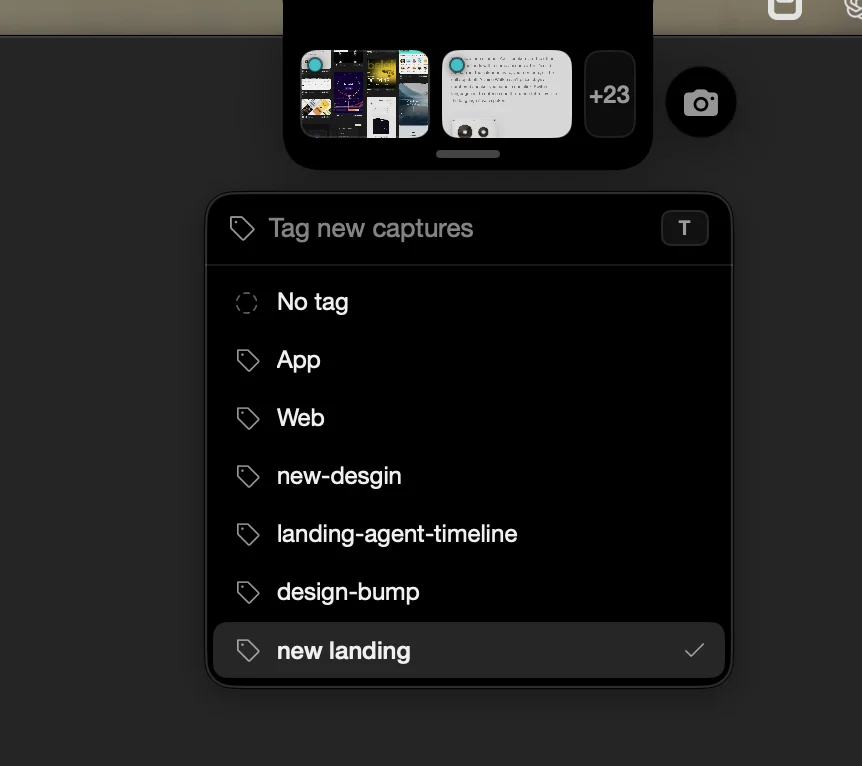
- Duplicates stack themselvesTake the same screen again and the new shot lands on top of the old ones, one place in the notch instead of five. Hold it to spread them out, or clear the extras from the Library.
Recent captures in the notch
Capture and edit.
Select part of the screen and Bigshot finds the edges. Then mark it up, hide what is private, and measure what you need.
- Capture, mark up, dragSelect part of the screen, draw on it, and it is back in the notch, ready to drop into any app.
- RedactionPixelate or blur what should stay private.
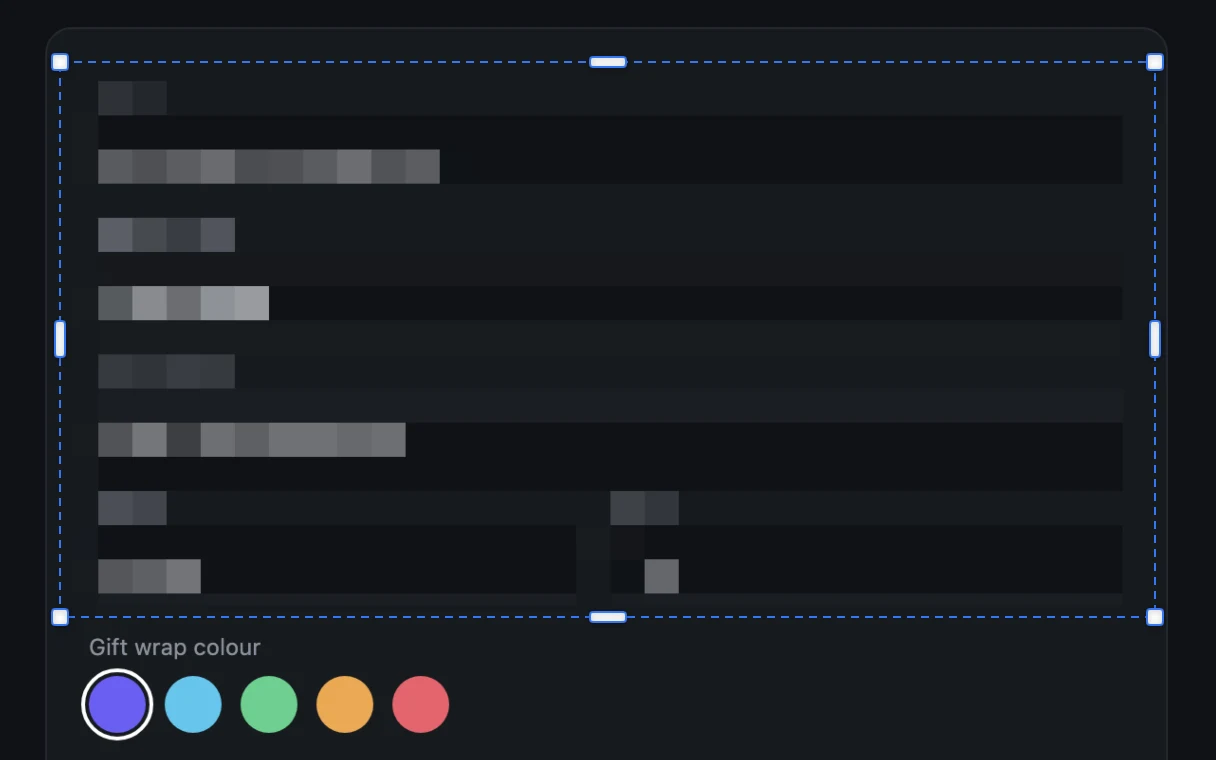
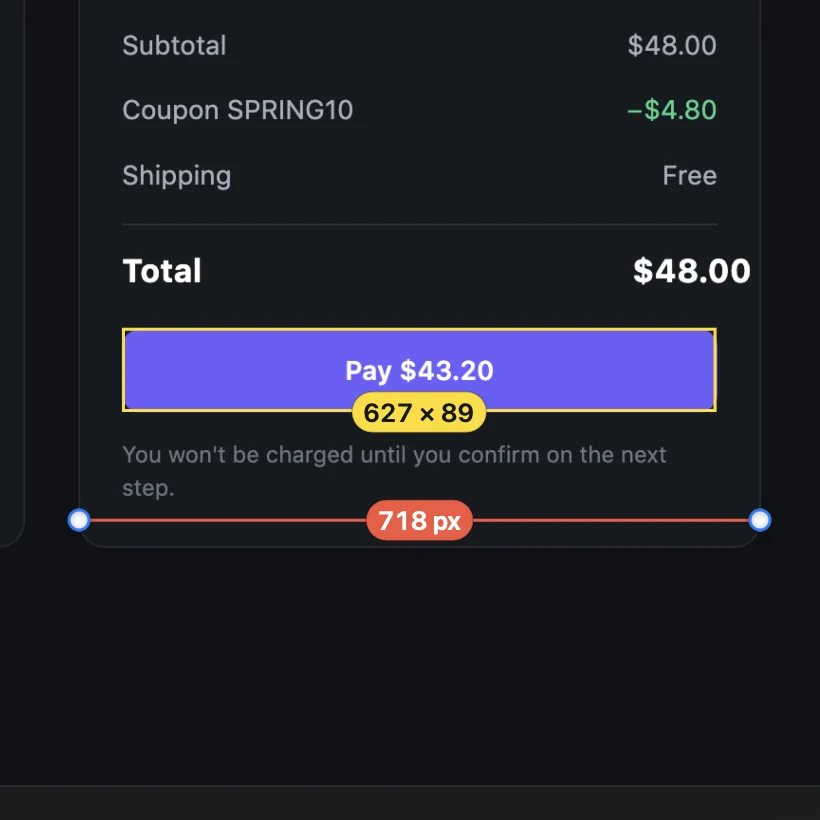
- MeasurementsDistances and sizes in pixels.
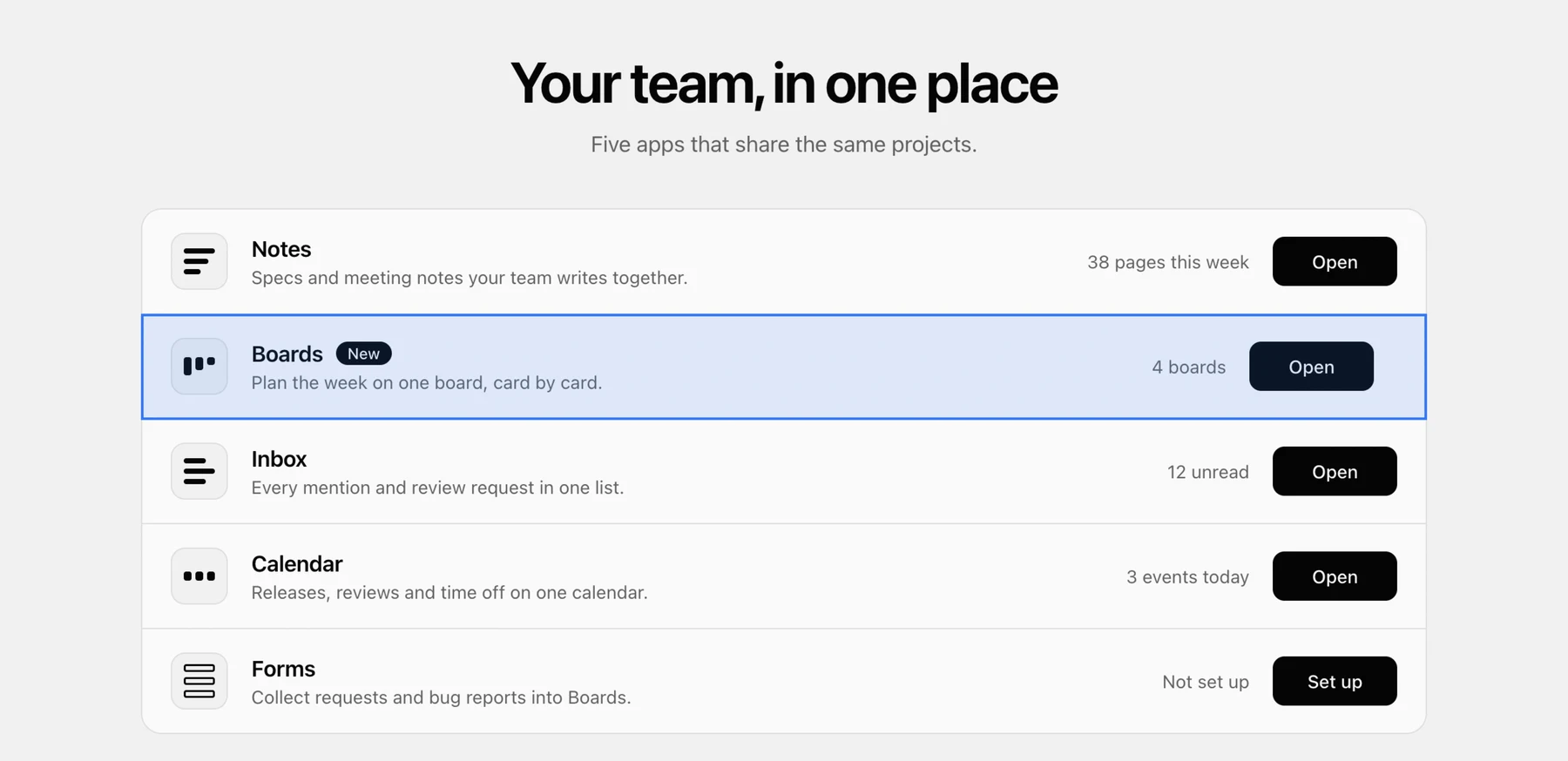
- Smart selectionSnaps to the window, panel, or row under the pointer, so there is nothing to crop.
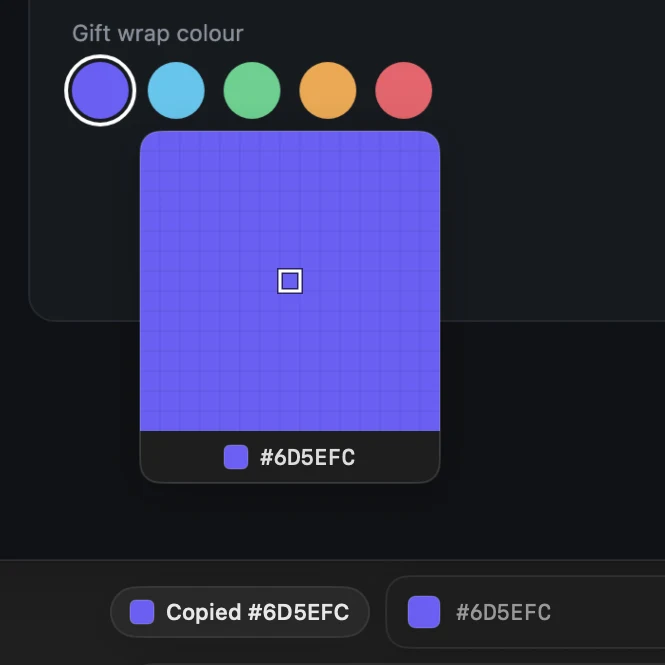
- Colour PickerAny pixel's colour, copied as HEX, RGB, HSL, or OKLCH.
Make the notch yours.
Choose the three tools that sit beside your captures, and their order. Drag a tool above the line and it is one click away; the rest wait in the menu bar. Every shortcut can be changed too.
Set up the islandEverything in Bigshot.
Capture
Edit
- AnnotationsArrows, boxes, highlights, spotlights, text, and numbered steps.
- RedactionPixelate or blur what should stay private.
- Measure and RulerPixels in a capture, or points anywhere on screen.
- Colour PickerAny pixel's colour as HEX, RGB, HSL, or OKLCH.
- Copy textSelect the text in a capture and copy it.
Notch
Library
- TagsTag captures as they come in, then filter by tag.
- MoodboardsEvery capture under one tag, as one board.
- Smart searchBy the words in it, by what it shows, or by likeness to another capture.
- ProjectsEach project's captures in its own folder.
- Keep and clean upOld captures go to the Trash unless you keep them.
If you write code.
Bigshot also gives your coding agent the screenshots it needs, shows the source behind any part of the screen, and runs an agent on what you select. It works with the agent you already use.
- Claude Code
- Codex
- Cursor
- Gemini CLI
- opencode
Runs locally.
Text recognition, search, and Code Lens run on your Mac. Your screen and your code never go to our servers.
Free for one Project.
Every feature is in the free version: Capture, Code Lens, Inline Agent, Hooks and screenshot context. It works with one Project and now and then asks you to upgrade. Pro adds unlimited Projects and stops the reminders, for a one-time $19.
Compare Free and ProBefore you start
Does anything leave my Mac?
Yes, if you send a capture to a cloud model. Dragging it into an agent, starting an Agent Run, or running a Hook hands it to the agent or API you picked, and Claude Code, the Anthropic API, and the OpenAI API run in the cloud. If your agent uses a local model, for example opencode or Codex set up with Ollama, the capture stays on your Mac. Code Lens, the Code map, text recognition, and the optional image model always run on your Mac. Bigshot itself only contacts bigshot.pics to check your licence and for updates, and Hugging Face when you download the image model.
Do I need a coding agent?
No. Capture, the editor, the island, and the Library work on their own as a screenshot tool. Screenshot context, Code Lens, and Inline Agent are there for when you write code.
Which code can Code Lens match?
Code Lens works on anything on your screen. The Code map it matches against reads TypeScript and JavaScript (including JSX and TSX), Markdown and MDX, Swift (SwiftUI and AppKit), Python, and shell scripts. Code Lens matches on text out of the box; an optional on-device image model, a 390 MB download you choose to install, adds matching on icons, images, and charts.
Does Bigshot change my code on its own?
Only when you start an Agent Run. The agent works on a new branch, in a separate worktree by default, and asks you before it does anything that needs permission. Bigshot never pushes or merges; you review the branch and merge it yourself.
Which agents work?
Inline Agent uses Claude Code, Codex, Cursor, Gemini CLI, or opencode, signed in with your own account. Hooks support Claude Code, Codex, Cursor, the Anthropic API, and the OpenAI API. You can also copy or drag captures into any app that accepts images.
What is free, and what does Pro add?
Every feature is free: Capture, Code Lens, Inline Agent, Hooks, and screenshot context for your agent. Free works with one Project and now and then reminds you to upgrade. Pro adds unlimited Projects and stops the reminders, on up to 2 Macs. It is a one-time purchase of $19 at launch, then $29, with 12 months of updates. Your last covered version keeps working forever.
What do I need?
An Apple silicon Mac on macOS 14 or newer, with Screen Recording permission granted to Bigshot.
Try it on your next screenshot.
Download Bigshot, hover the notch, and capture.
Download for macOSmacOS 14 or newer · Apple silicon · Free for one Project